On-brand AI images, with your real logo
Generic AI pictures don't look like your brand. Cutlin makes on-brand AI images: type your brand's @username under Primary brand in Configuration and its published guidelines - instructions, assets and fonts - guide the picture, then your real logo file is placed on it. The AI never draws it.
- @username brings your whole brand in
- 1
- credits per branded image
- 30
- on-brand items in one plan
- 30
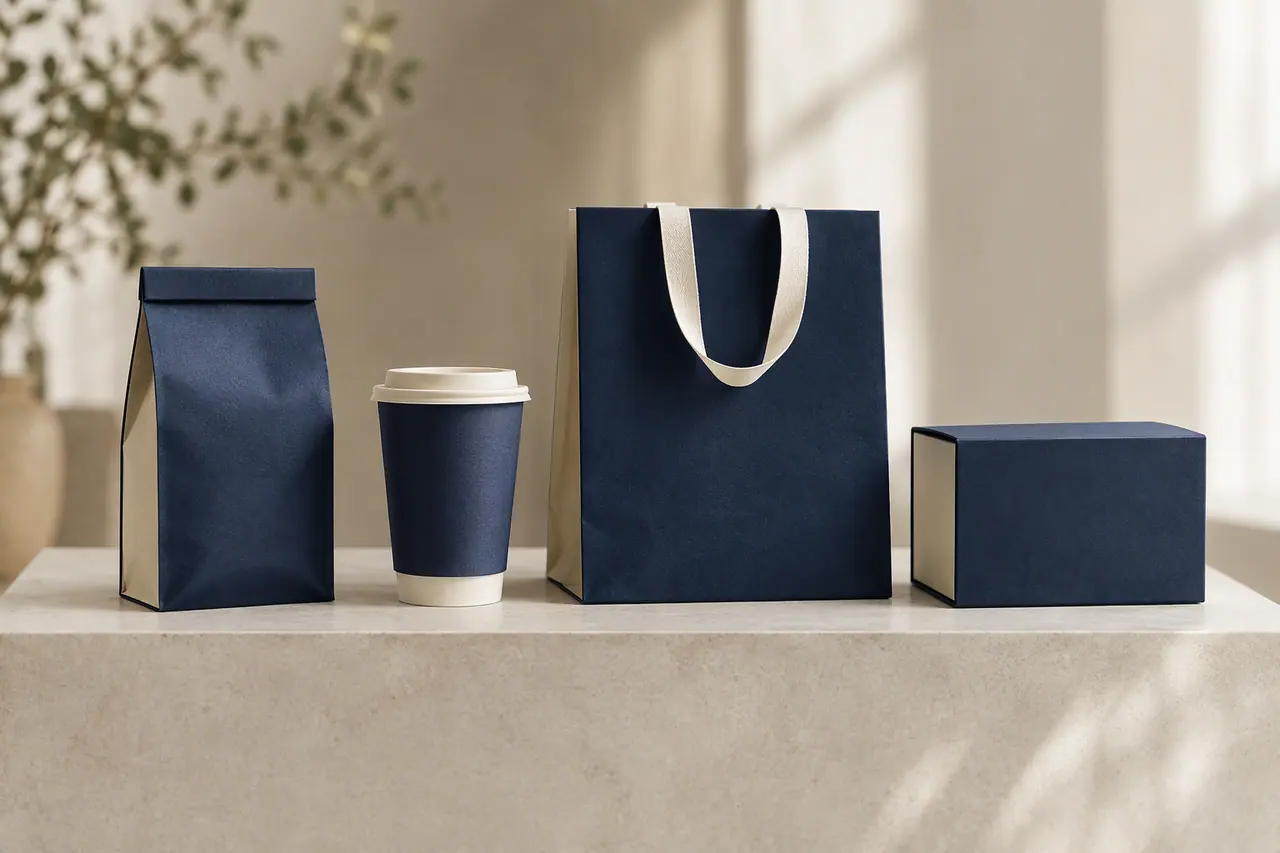
On-brand AI images, step by step
Publish your guidelines
Set up your brand in Melon Cut Guidelines, at meloncut.com, with its logo, colours, fonts and instructions, and publish it.
Add the brand
In Cutlin, open Configuration and search for the brand under Primary brand, or pick one of your five most recent. Then write your prompt as usual.
Get on-brand results
The guidelines shape the picture, and your real logo is placed on it in the variant that stands out best against the background.
Your guidelines, read for every picture
When a brand is added, its published instructions and its most relevant assets and fonts guide the request, so results use your colours, your type and your style rather than a model's defaults. Every item in a plan follows the same brand, which keeps a campaign consistent.
Your real logo, placed after the picture is made
Cutlin never asks the AI to draw your logo. Once the picture is generated, your actual logo file is placed on it, following a few rules.
- The variant that stands out best against the background is chosen
- It is never recoloured or stretched
- Nothing is put under it - no plate, no box - so the file sits on the picture as it is
- It stays inside the social safe area, bottom-right by default
- Write "no logo" in your prompt and it is left off
What your brand needs
Any brand with published guidelines in Melon Cut Guidelines can be used, and its Free plan works with Cutlin. The more your guidelines say - instructions, fonts, more than one logo variant to choose from - the more the results look like you.
What it costs
A branded image uses 30 credits, against 5 with Fast or 15 with Quality for a picture without one. The cost is shown before each run, and each result shows what it used.
On-brand AI images: the details
- How
- Search for the brand under Primary brand in Configuration, or name it with @ in the prompt
- Needs
- Published guidelines in Melon Cut Guidelines
- Guided by
- The brand's instructions, assets and fonts
- Logo
- Your real file, placed after generation
- Default logo position
- Bottom-right, inside the safe area
- Credits
- 30 per branded image
Can AI put my real logo on images?
Yes. Cutlin places your actual logo file on the finished picture instead of asking the AI to draw it, and picks the variant that stands out best.
Can I leave the logo off one picture?
Yes. Say "no logo" in your prompt and the picture is made on-brand without it.
Can I switch between brands?
Yes. Choose a different brand under Primary brand in Configuration and the next results follow its guidelines, which suits agencies and companies with several brands. The five you used last are listed there, and Remove selected brand goes back to none.
Does it work with Nano Banana?
Yes. Your brand's guidelines guide it, and your real logo file is placed on the finished picture.
Which brands can I use?
Any public brand, with no permission needed: search for it by name or @username. A private brand can be used only by people with access to it, and brands on Melon Cut Guidelines' Free plan are private.
Can I use my brand's templates and models?
Yes. Choose a template in Configuration before you generate, or type @ in your prompt and pick a model, such as a character or a product, from the suggestions.
A brand used in Cutlin is kept in Melon Cut Guidelines: its guidelines page is at meloncut.com/yourbrand, and Cutlin reads it from there.
Works well with
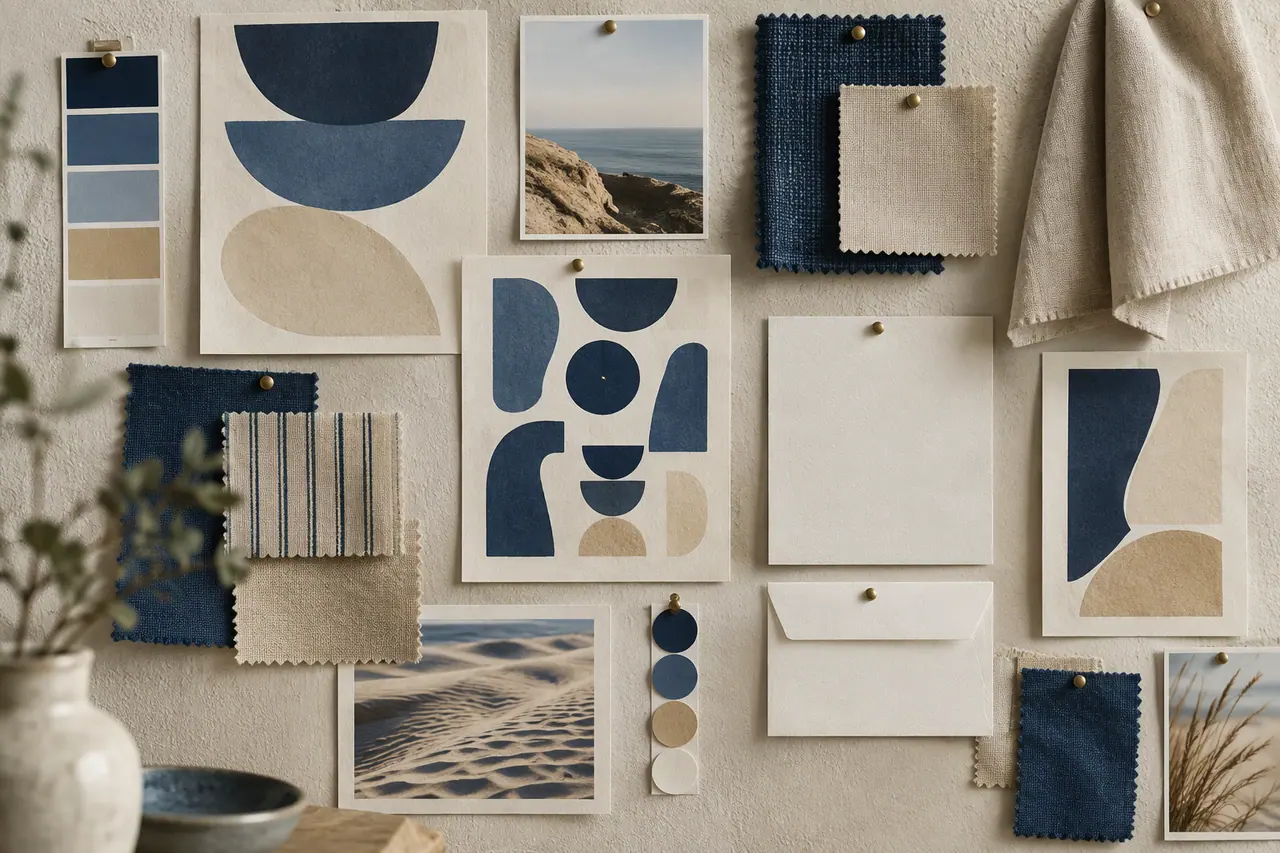 On-brand content
AI brand identity generator
Logo, colours, fonts and guidelines from a description.
 Video
Branded video
An opening frame and a logo end card, from your guidelines.
 Watermark
Logo watermark
Free for anyone signed in: your logo on as many pictures as you add.
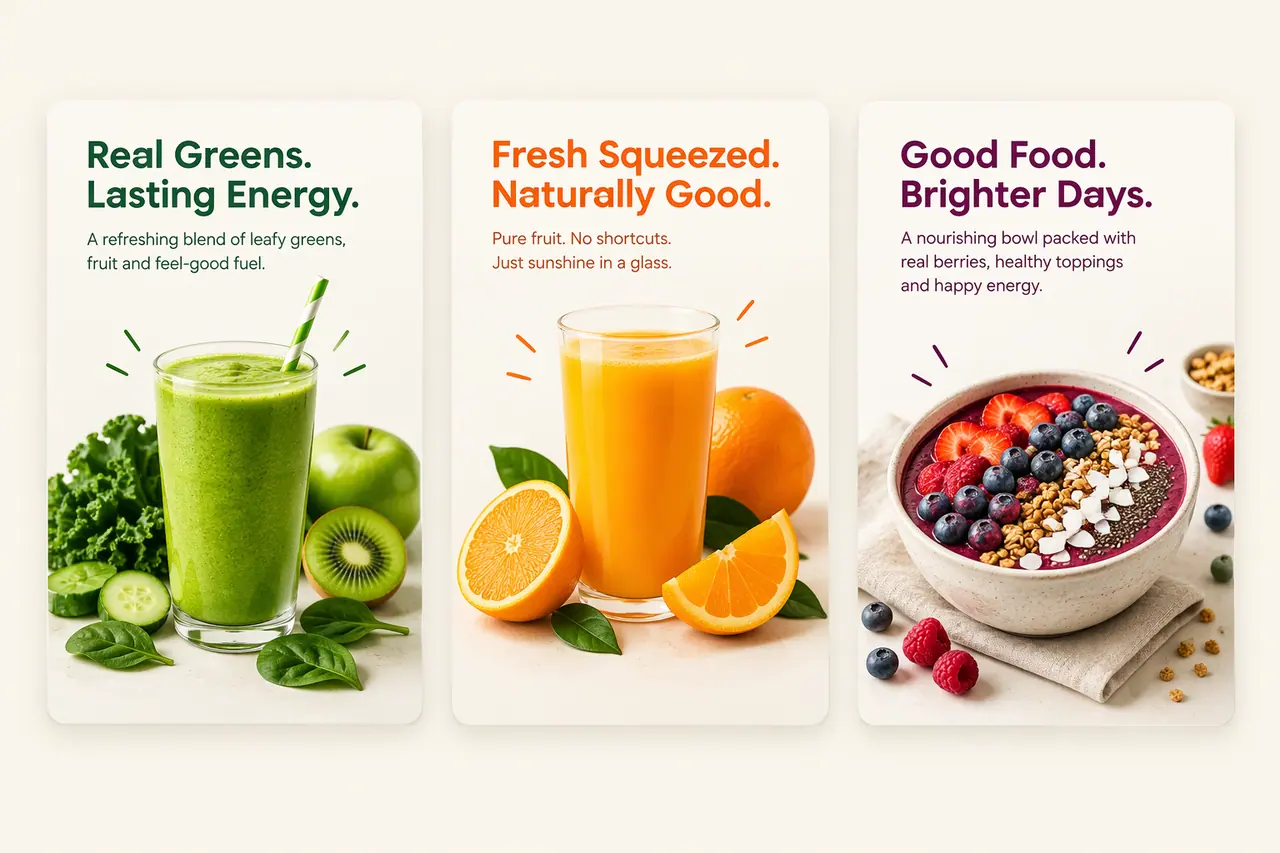 Social media
 post generator
Feed posts at 1080 × 1350, checked before you post.


People also ask
- Your brand How do I make AI images on-brand? Give the AI your brand, not just a prompt: your colours, fonts, photo style and the rules for your logo. Describing them in every prompt helps, but results still drift. A tool that reads your published brand guidelines does it consistently. In Cutlin, add your brand's @username and every result follows its guidelines, with your real logo placed afterwards.
- Your brand Can AI put my real logo on images? Most AI image models can't reproduce a logo exactly: they redraw it, and letters, shapes or colours come out wrong. The reliable way is to generate the picture first and then place your real logo file on it. Cutlin does this when you add your brand: it picks the logo version that stands out best and never recolours or stretches it.
- Social media How do I keep social media posts on-brand? Write the rules down and apply them every time: the same colours, fonts, logo placement and tone of voice on every post. Brand guidelines make that possible. Publish yours in Melon Cut Guidelines, then type your brand's @username in Cutlin: its colours, fonts and style guide every post, and your real logo file is placed on it.
Try it on your next post
Your guidelines and your real logo on every picture.