AI vector generator: editable SVG from a description
Describe an icon, an illustration, a badge or a pattern and Cutlin's AI vector generator returns a real SVG: paths and shapes you can open, recolour and scale in any vector editor, rather than pixels.
- credits per vector graphic
- 10
- credits to convert a picture instead
- 3
- ways in: describe it, or trace a picture
- 2
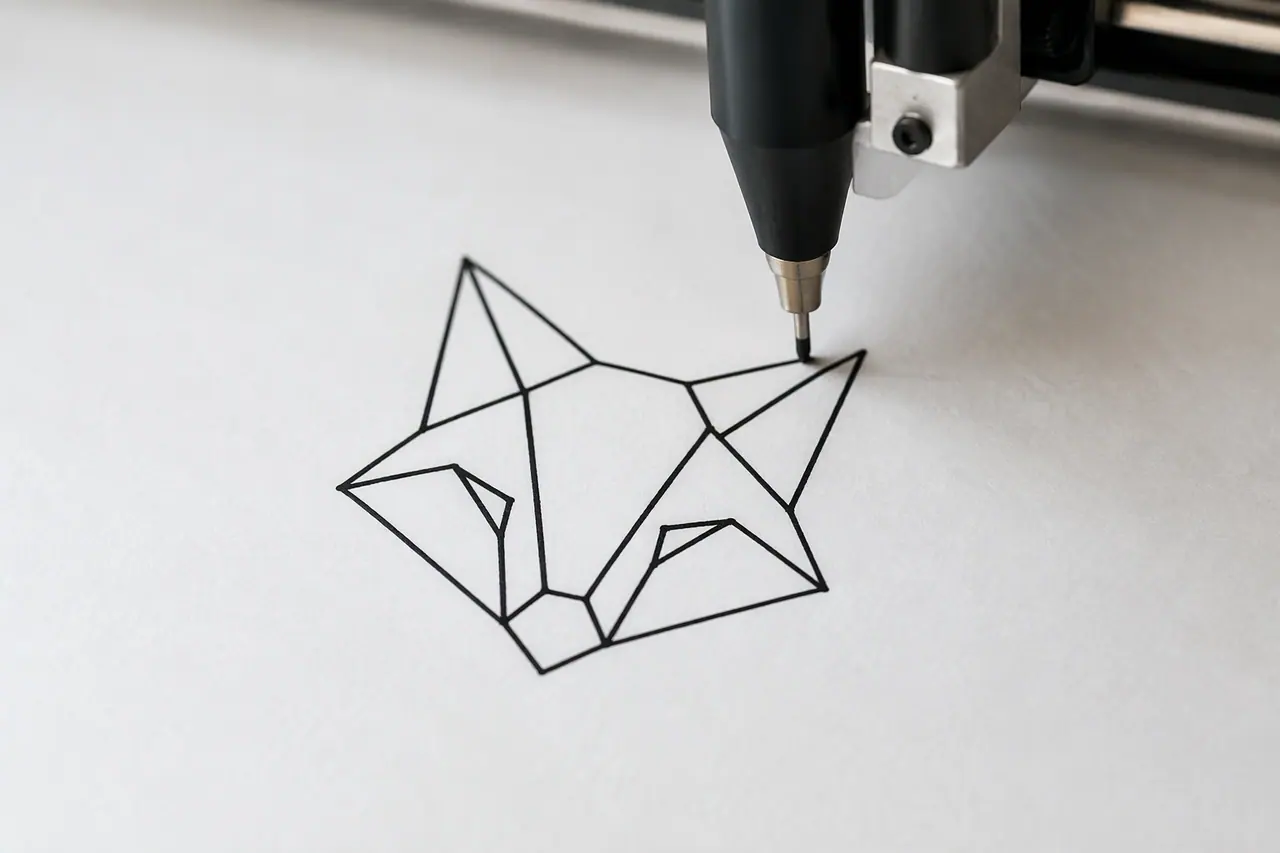
AI vector generator, step by step
Ask for a vector
In the studio's prompt, ask for a vector graphic or an SVG. Cutlin reads the prompt and makes a vector rather than a picture.
Describe the graphic
Say what it is, its style and its colours - "a flat line icon of a coffee cup in two colours" - then pick the aspect ratio and how many results you want.
Download the SVG
Download the file and use it in your design tool, on your website or in a print layout. It scales to any size.
Vector graphics, not pictures of them
Most AI pictures are made of pixels. A vector graphic is made of paths and shapes instead, so it stays crisp at any size, from a website icon to a shopfront sign, and every part of it can be edited. Cutlin makes real SVG files with Recraft vector models, picking the best of those ticked in Settings.
What to make with it
Vectors suit graphics with clear shapes and a limited set of colours. A few examples:
- Icons for a website or an app
- Simple illustrations for slides and documents
- Badges, stickers and labels
- Patterns and decorative shapes
- Early logo ideas to refine in a vector editor
Choose the shape and how many
Pick the aspect ratio before you run it - square for an icon, wide for a banner graphic - and the number of results. Then keep the one that fits, or describe what to change for the next try.
Already have the picture?
If you have a drawing, a logo or a scan to turn into SVG, attach it to your prompt and ask for a vector instead of describing it. Convert to vector traces the picture you upload.
AI vector generator: the details
- Output
- Real, editable SVG
- Settings
- Aspect ratio and number of results
- Models
- Recraft vector models
- Credits
- 10 per vector
- Also in Cutlin
- Convert to vector, for a picture you attach
Can AI generate SVG files?
Yes. Ask Cutlin for an SVG and describe the graphic, and it returns a real SVG made of paths and shapes, ready to edit in any vector editor.
Can I use it to design a logo?
You can use it to explore logo ideas as editable SVG. For a complete identity - logo, colours, fonts and guidelines together - ask Cutlin for a brand instead.
Can I change the colours afterwards?
Yes. Open the SVG in a vector editor and change its colours and shapes like any other vector file.
A brand used in Cutlin is kept in Melon Cut Guidelines: its guidelines page is at meloncut.com/yourbrand, and Cutlin reads it from there.
Works well with
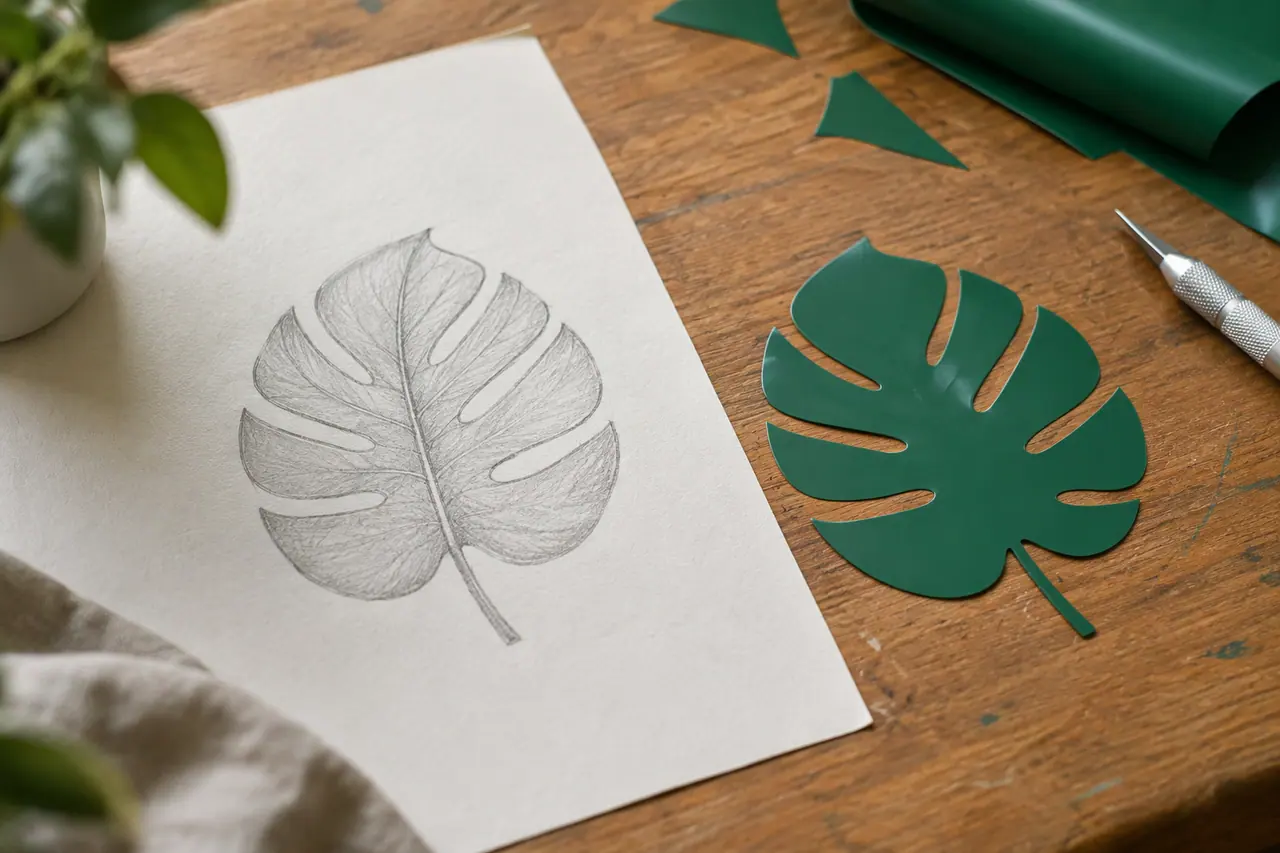 Vectors
Image to SVG
Trace a PNG or JPEG into editable SVG.
 On-brand content
AI brand identity generator
Logo, colours, fonts and guidelines from a description.
 Create images
AI image generator
Text to image, Fast or Quality, at the size you need.
 Create images
AI models
GPT Image or Nano Banana for pictures, Fast or Quality, on one credit balance.


People also ask
- Vectors and SVG Can AI generate SVG files? Yes. Some AI models draw true vector graphics: shapes and paths you can scale and edit, saved as SVG. Others only make pixel images, which can be wrapped in an SVG file without becoming vectors. Ask Cutlin for a vector and it makes real, editable SVG from a description, with a choice of aspect ratio and number of results.
- Vectors and SVG What is a vector image? A vector image is a picture stored as shapes - points, lines, curves and fills - rather than a grid of pixels. Because the shapes are described mathematically, a vector scales to any size, from a favicon to a billboard, without blurring. SVG is the most common vector format on the web; JPEG and PNG are pixel formats.
Coming soon
AI vector generator is coming soon. Today you can make AI images and on-brand social media pictures in Cutlin.