AI brand identity generator: logo, colours, fonts and guidelines
Ask Cutlin for a brand, describe your business, and it creates a brand identity - a logo, colours, fonts and guidelines. The brand appears as a card in the chat, and Open brand shows it in a sidebar beside the chat - a live preview, with undo and publishing - while you keep refining it in the same chat. When it is right, publish it as a Melon Cut Guidelines brand and use it in every picture you make.
- live preview tabs
- 5
- ways to make the logo: draw, trace, redraw
- 3
- credits per change to a brand
- 5
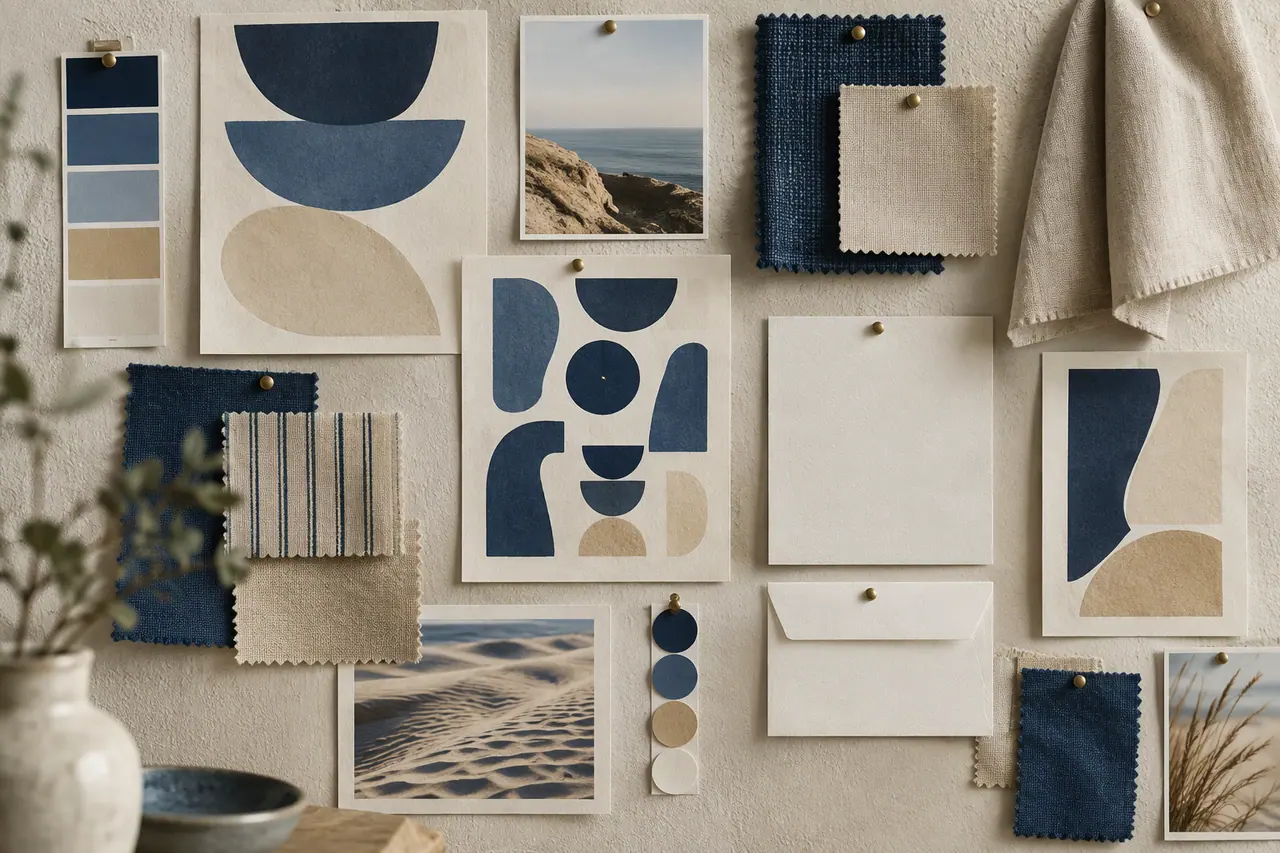
AI brand identity generator, step by step
Describe the business
In the studio's prompt, ask for a brand and say what the business does, who it serves and how it should feel. Attach up to 4 pictures - a sketch, an old logo, references.
Shape it in the preview
Choose Open brand on the card in the chat and the brand opens in a sidebar beside it, with the live preview. Ask for changes in plain words in the same chat, its prompt still open. If a turn goes the wrong way, use Undo last change.
Publish the brand
Choose a parent brand if it has one, and publish it to Melon Cut Guidelines. It starts private; a paid plan there gives it a public page and a username.
A whole identity from one conversation
A brand is more than a logo. Cutlin creates the pieces together - a logo, a colour palette, font files kept with the brand and the guidelines that explain how to use them - so they are made to work as a set. Name your own fonts and attach their files, and those are used.
You see every part in the live preview as it changes, across five tabs: Guidelines, Overview, Foundation, Assets and Systems. Ask for a change and watch it land; Undo last change steps back if you don't like it.
Three ways to make the logo
Attach up to 4 pictures to give the AI something to work from, whether that is a sketch on paper or a logo you have used for years. Then choose how the logo is made.
- Drawn from scratch, from your description
- Traced from a logo or sketch you upload
- Redrawn from one you attach
Things to fix, and suggestions
Alongside the preview, the brand lists things to fix and suggestions for the identity. You can see what still needs work before anything is published.
Publish it, then use it
Publishing creates the brand in Melon Cut Guidelines, with a parent brand if it belongs to one. It starts private, opened from its own link; a paid Melon Cut Guidelines plan for the brand gives it a public page and a username, such as meloncut.com/yourbrand. Working on a brand you already have? Publish the changes as an update, as a new brand, or as a new identity that keeps the old one as an earlier identity.
Once it is published, choose it under Primary brand in Cutlin and your pictures follow its guidelines, with the real logo placed on each. The same brand page is what designers and partners open from its link.
AI brand identity generator: the details
- Creates
- Logo, colours, fonts and guidelines
- Fonts
- Font files kept with the brand: open-licence fonts, or your own
- Preview tabs
- Guidelines, Overview, Foundation, Assets, Systems
- Attachments
- Up to 4 pictures
- Publish as
- A new brand, an update, or a new identity
- Credits
- 5 per turn
Can AI create a brand identity?
Yes. Ask Cutlin for a brand and describe the business, and it creates a logo, colours, fonts and guidelines together, which you refine in conversation and publish as a brand.
Can it work on a brand I already have?
Yes. Ask Cutlin to change your existing brand, then publish the result as an update, or as a new identity while the old one stays as an earlier identity.
Where does the finished brand live?
In Melon Cut Guidelines, as brand guidelines. A brand with a paid plan there is public at meloncut.com/yourbrand and listed in its directory; a private one opens only for people who have its link.
A brand used in Cutlin is kept in Melon Cut Guidelines: its guidelines page is at meloncut.com/yourbrand, and Cutlin reads it from there.
Works well with
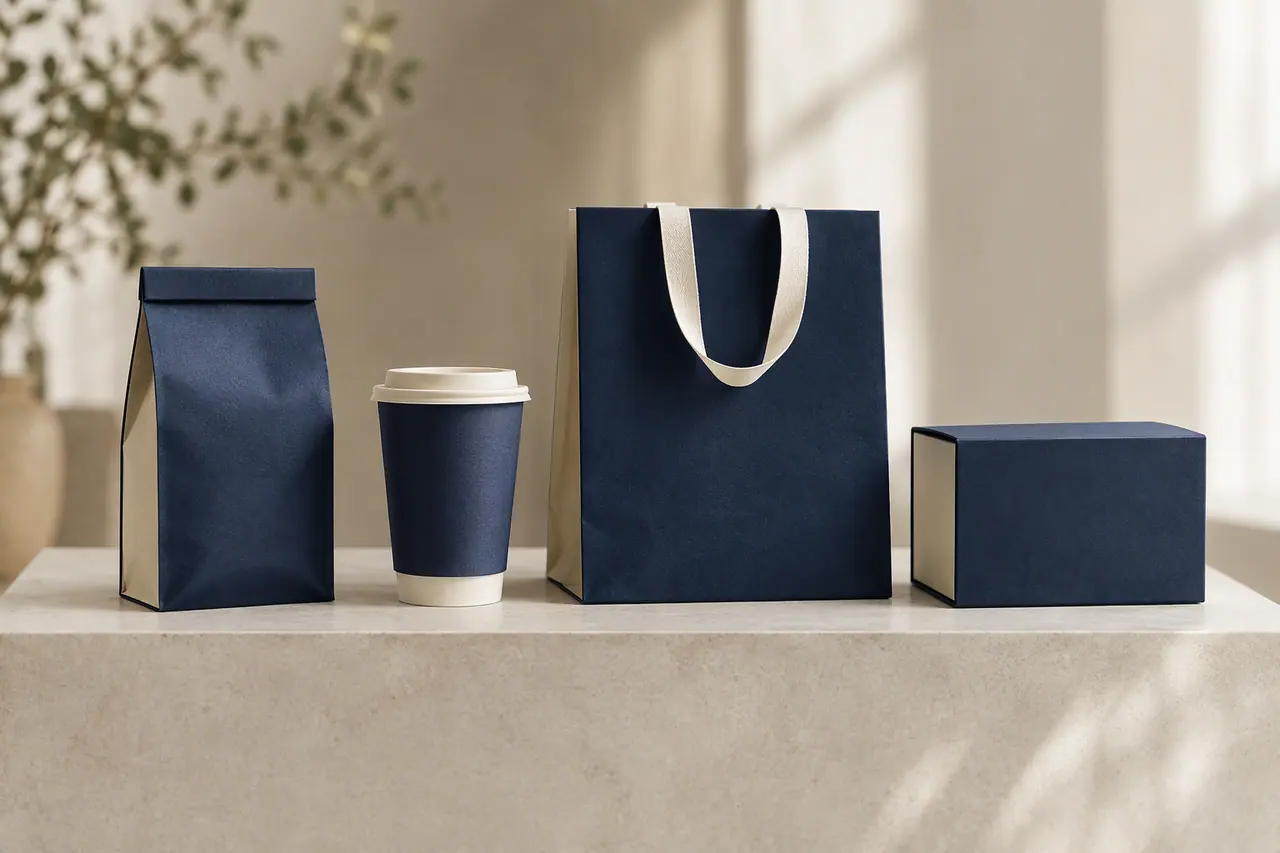 On-brand content
On-brand AI images
Your guidelines and your real logo on every picture.
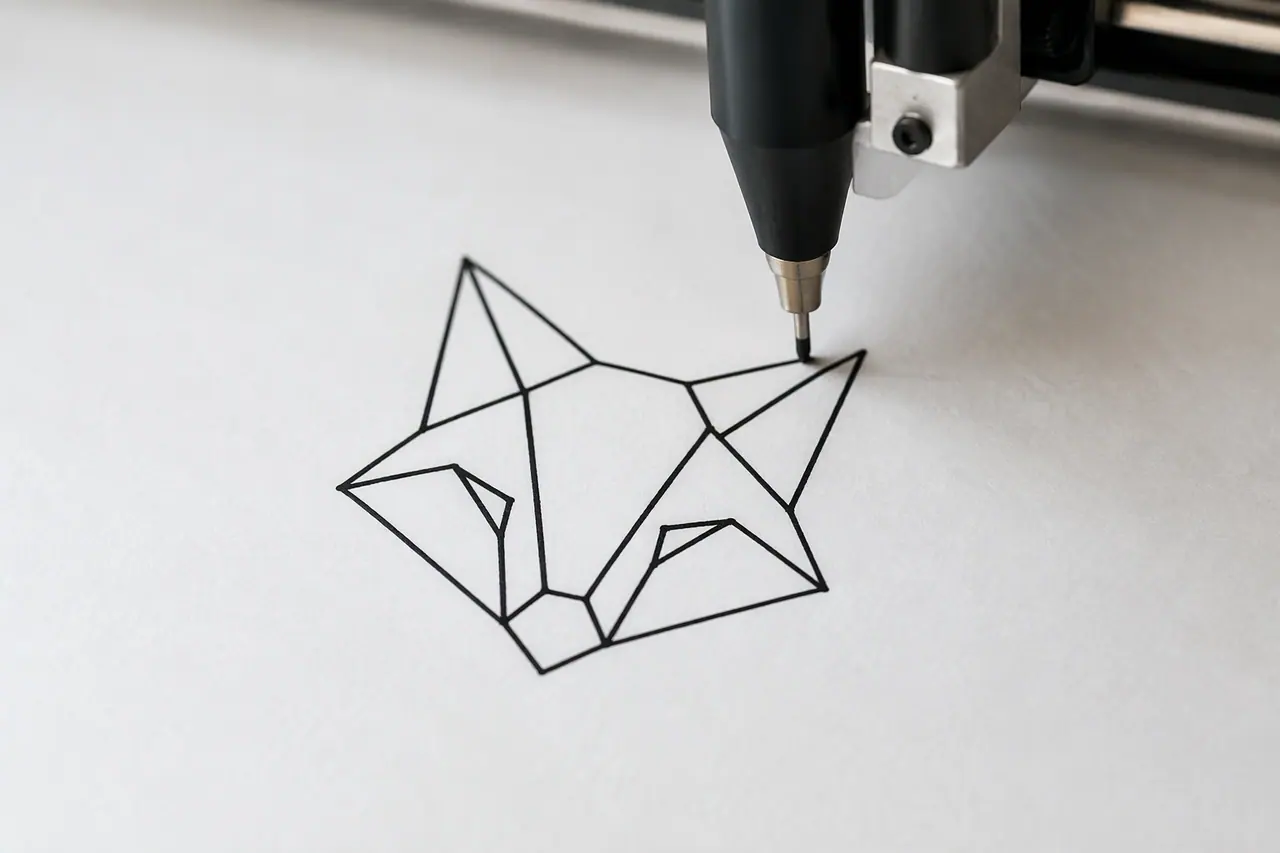 Vectors
AI vector generator
Real, editable SVG from a text description.
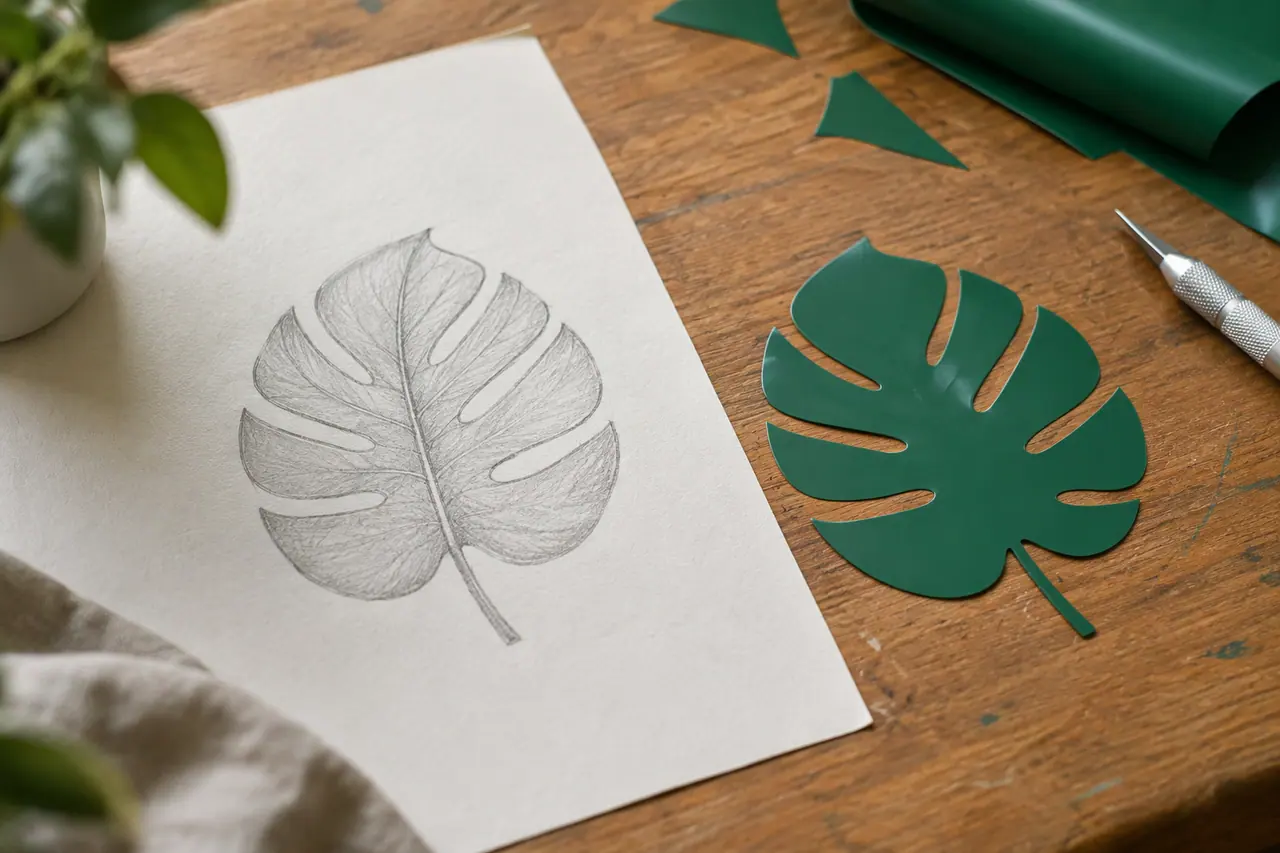 Vectors
Image to SVG
Trace a PNG or JPEG into editable SVG.
 Create images
AI image generator
Text to image, Fast or Quality, at the size you need.


People also ask
- Your brand Can AI create a brand identity? Yes. AI can turn a description of a business into a starting brand identity: a logo, a colour palette, fonts and written guidelines. It is fast and useful for exploring directions, but you still decide what fits - review the logo closely, check that the name and mark are free to use, and refine it until it feels like yours.
- Your brand How do I make AI images on-brand? Give the AI your brand, not just a prompt: your colours, fonts, photo style and the rules for your logo. Describing them in every prompt helps, but results still drift. A tool that reads your published brand guidelines does it consistently. In Cutlin, add your brand's @username and every result follows its guidelines, with your real logo placed afterwards.
- Getting started What is the difference between Cutlin and Melon Cut Guidelines? Cutlin makes things: it is an AI studio for images, social posts, stories, videos, vectors and brand identities, paid for with monthly credits. Melon Cut Guidelines keeps things: it stores a brand's logos, colours, fonts and rules and, on a paid plan, publishes them at meloncut.com/yourbrand. It is priced per brand with a Free plan. Together, Cutlin uses your guidelines to stay on-brand.
Coming soon
AI brand identity generator is coming soon. Today you can make AI images and on-brand social media pictures in Cutlin.